Access Claude Code Remotely: Claude Remote

Claude Code is one of the best AI tools right now, to be able code directly in the CLI is very useful but we are tied to the laptop itself.
You want to be able to work on it whenever you want to because thats when you feel the motivation to do it, and you won't get it back if you don't
In this post I will help you setup an instance of Claude Code remotely and you can then keep working on new things from anywhere without worrying about needing a laptop when you can just code from your phone
VPS
What is a VPS? Its a Virtual Private Server. I run a homelab where I could set-up all of this but running certain things on a VPS is actually better.
Your homelab is for you to be able to break, you don't want certain things to break because you want access all the time. You don't want to spend time fixing where you work, it becomes quite a bit of an hassle. So running a cheap VPS box that you don't have to Manage is so useful.
You can use different providers like Hostinger, Digital Ocean, Hetzner Box and many others, the choice is yours and I have also provided links with discounts if you choose to use one.
 Hostinger


I personally use Hostinger because most of the boxes do not have a location in singapore or if they do they are a little too expensive.
I was able to save more money as Hostinger was having a sale so I got the yearly price for quite a big discount.
Also Hostinger gives you an image with just claude code, so to set up and get going its really fast!
Why not use AWS, Azure etc?
These providers were built for enterprise grade systems. Running small stuff like lambda or something is actually fine but when you want to run a decent size VM, the price becomes way too expensive. And you don't need most of the features and customisation.
Having a nice simple UI with not a lot of customisation and mostly everything you need there is quite nice and you can customise inside the box as much as you want later on as well.
Getting Started
Lets say you choose Hostinger. Because signing up is quite quick and easy and you are able to choose claude code as your image you can get started in 5+ minutes.
Once you purchase it will tell you its setting up and after that you can connect to the VM and you are done!
Not really We want to make sure we don't just connect using Public IP and then use a password, we want to make sure we are completly airtight and nothing can get in
What is Tailscale?
I love tailscale because of how simple and useful it is to connect all your devices and be completely secure, and also its much easier to use than a VPN.
And for those who are more savy and want to control everything on their network completly they can even look at Headscale
Setting Up
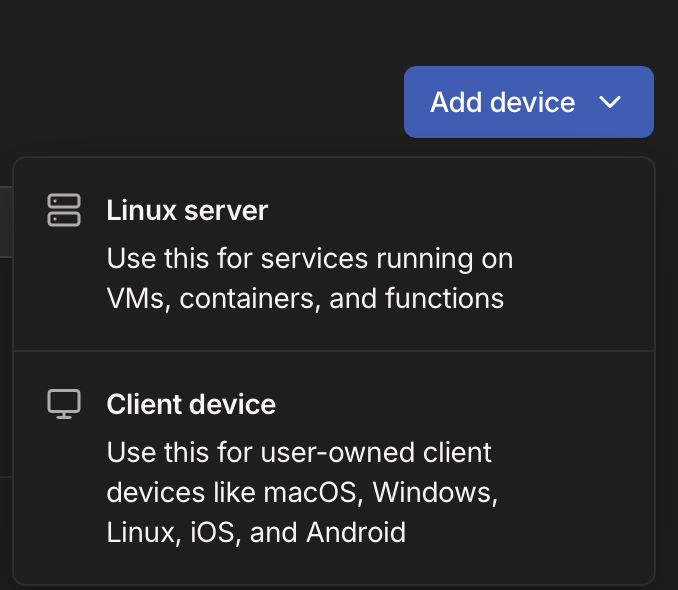
Once you have created an account and also downloaded it on your phone, you will now want to install tailscale on the server itself you can click add device and follow the instructions for linux server to install. You can choose how long you want the key expiry and other customisations but you can mostly leave them default or maximum
Make sure that you also first create a ssh keygen from the laptop you are setting up so you keep access
Note: Hostinger provides terminal access directly as well so you have a backup method to access the server as well
Once tailscale is installed you will also want to disable any form of login via public ip
You can edit the ssh config in the location
/etc/ssh/ssh_config
Editing the parts
Match Address 100.*.*.*
PasswordAuthentication no
To make sure you set it so you use the tailscale ip as a way to login and only login via the ssh key
And you can restart the ssh daemon using
sudo systemctl restart ssh
Now you will run the command
tailscale set --ssh
This will kick you out and you won't be able to access the server via the ssh because you need to configure the ACL commands
You need to edit these things
"tagOwners": {
		"tag:server": ["autogroup:admin"],
	},
You need to add the above first so you can then add the tag to the server by clicking the elipses and you edit the ACL tags
and you add the below
"ssh": [
		{
			"src":    ["<your_email>", "autogroup:member"],
			"dst":    ["tag:server"],
			"users":  ["root", "<your_user>"],
			"action": "accept",
		},
	],
Now you should be able to run ssh using the name of your machine on tailscale and you don't have to worry about the ssh key and now you can access the server anywhere you have tailscale
With the new added Claude Remote, you can start a session in your VPS and can continue working on everything from your phone with your application. This can still be quite useful as you can disconnect from the terminal but you have the restrictions of not being able to run bash commands inside the chat
You are also isolating your environment so that you prevent the possibility of rouge agents or anything where you keep a level of security but also make sure you can continue working remotely if you are on your phone and the terminal feels a little hard to use while chatting, you have a great method to continue working!